










This guide takes a fresh Windows Server 2022 Standard installation from ISO download to a fully activated server — including the command-line route for Server Core.
System requirements
| Component | Minimum | Recommended |
|---|---|---|
| CPU | 1.4 GHz 64-bit | 3.1 GHz+ multi-core |
| RAM | 512 MB (Core) / 2 GB (Desktop Experience) | 16 GB+ |
| Disk | 32 GB | 100 GB+ system drive |
| Network | Gigabit Ethernet | 10 GbE |
| Firmware | — | UEFI with Secure Boot + TPM 2.0 |
Step 1 — Download the ISO
- Get the official ISO from the Microsoft Evaluation Center (free registration, ~4.7 GB, 64-bit).
- Optionally verify the SHA-256 hash after download (
certutil -hashfile file.iso SHA256). - Your retail key converts the evaluation to full Standard — see the activation section below.
Step 2 — Install
- Write the ISO to a USB drive (Rufus or similar) and boot the server from it.
- Choose language and region settings.
- Enter your product key (or click I don't have a product key to add it later).
- Pick the installation type: Standard (Desktop Experience) for a full GUI, or Standard (Server Core) for a minimal command-line server.
- Accept the licence terms → Custom install → select/partition the target disk.
- Wait through file copy and restarts (20–40 minutes), then set the Administrator password.
Step 3 — Activate
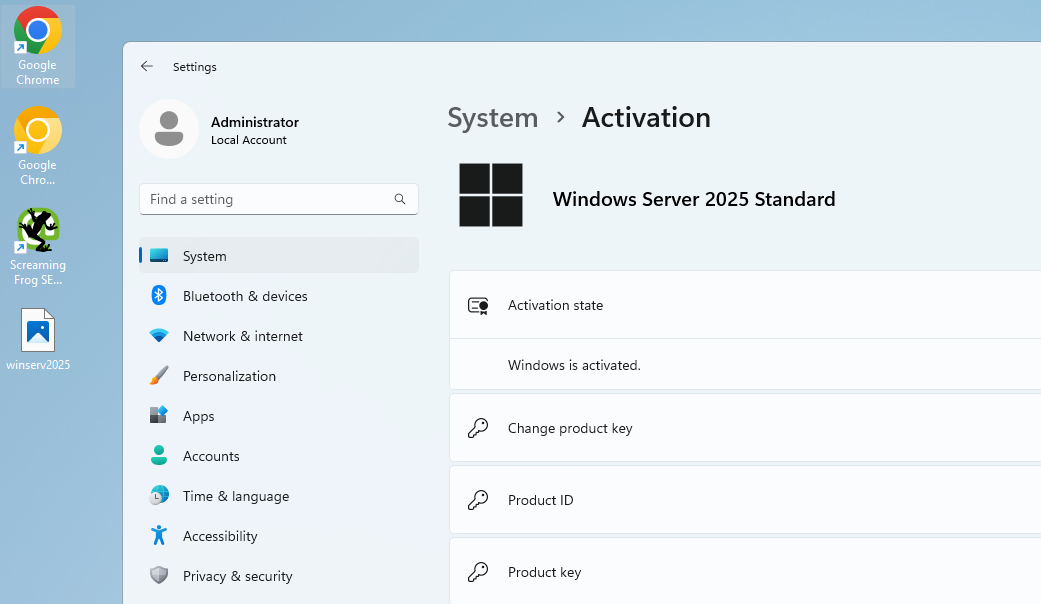
Desktop Experience (GUI): Settings → System → About → Change product key → enter the 25-character key → Activate.
Server Core / evaluation converts (command line):
DISM /online /Set-Edition:ServerStandard /AcceptEula /ProductKey:XXXXX-XXXXX-XXXXX-XXXXX-XXXXX
shutdown -r -t 0
slmgr /ato
No internet on the server? Use phone (offline) activation — get your Confirmation ID in seconds with the SoftwareKey.lk Get CID tool.
Common activation errors
0xC004C003— key blocked or wrong edition; confirm the key matches Server 2022 Standard and contact your seller.0x8007007B— almost always a typo; copy-paste the key from your order email.0xC004F074— you used a KMS client key on a non-KMS network; activate with your retail/MAK key instead.- DISM edition error — the installed edition can't convert to the target; run
DISM /online /Get-TargetEditionsto see valid targets.
Get a genuine key
Genuine Windows Server 2022 Standard and Datacenter keys with instant delivery and free activation support — browse them at SoftwareKey.lk.